Some projects start because they are useful. This one started because an idea would not leave me alone while I was deep in a very different problem.
I had been working on agentic workflows for robotics and embodied AI: planning loops, execution steps, tool use, and the strange little handoff between what an agent decides and what the physical world actually does. In that headspace, I kept thinking about interfaces that feel responsive in a more embodied way. Tiny actions, immediate feedback, a sense that the computer is reacting with you instead of just waiting for commands.
Somewhere in the middle of that sprint, the thought turned playful. What if typing anywhere on macOS could quietly become music? Not a full DAW, not a big instrument, just a small menu-bar app that made the keyboard feel alive for a moment.
That became Piano Book Pro.
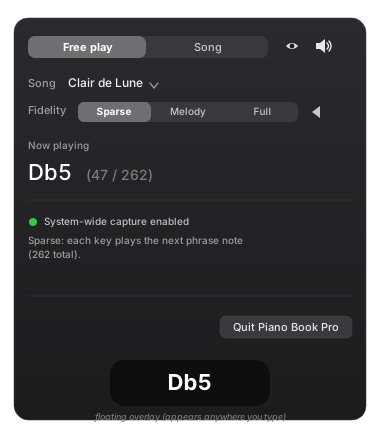
The app has two modes. In free play, the keyboard is mapped chromatically, so you can type notes directly. In song mode, every keystroke advances the next note or chord of a MIDI file, which means you can “play” a real piece while typing at your own rhythm. There is also a small floating note overlay, a mute toggle, fidelity controls, and support for importing your own .mid files.
The fun part for me was making it feel native and light: a Swift macOS app, living in the menu bar, using Accessibility so it can hear keystrokes while you are in any app. It is intentionally small, but it has that little spark I wanted.
At first I thought of it as a quick personal experiment, the kind of thing you build to clear your head between larger systems. Then a few colleagues started asking practical questions: could they install it, could it play real songs, could it load their own MIDI files? Those questions pushed me to clean up the app, write the install flow, and release it properly instead of leaving it as another local prototype.
You can install it with Homebrew:
brew install --cask ivanrulik/tap/piano-book-proOr download the DMG from the latest Piano Book Pro release, open it, and drag the app into Applications.
On first launch, macOS will ask for Accessibility permission. Grant it, click the piano icon in the menu bar, and start typing.